
Microsoft Teams User Doku
Functions
-
Pull together a team.
-
Use chat instead of email.
-
Securely edit files at the same time.
-
See likes, @mentions, and replies with just a single tap.
-
Customize it by adding notes, web sites, and apps.
Platforms
- Windows Desktop
- iOS App
- Android App
How to start
- Microsoft Teams is pre-installed on all TecAlliance Windows-Clients. You can start it by searching "Teams" in your startmenue, otherwise you can download it via Windows Store and Software Center.
Teams / Chats
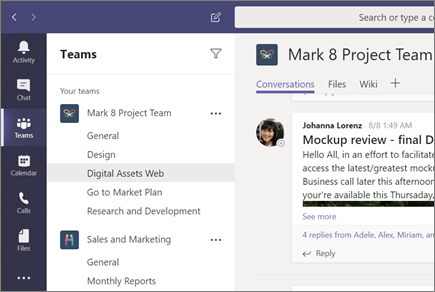
A team is a collection of people, conversations, files, and tools — all in one place. A channel is a discussion in a team, dedicated to a department, project, or topic. The best way to get familiar with teams and channels is to pick a team and channel and start exploring!
You can find the Team-Chat features also in the chat. Chats are possible with another person or a group of persons. To find your chat partner use the searching bar at the top of Microsoft Teams.
How to use
- Select Teams on the left site of Microsoft Teams
==> you find a overview of your O365 Groups that are available in Teams- You can add O365 Groups to Teams by clicking "Join or create a team" at the bottom of the team list. (Group creation is available via SharePoint)
- Choose "Add to existing group" and select the O365 Group.
- If you need a new group, you can just request it by creating an IT call (itcall@tecalliance.net.)
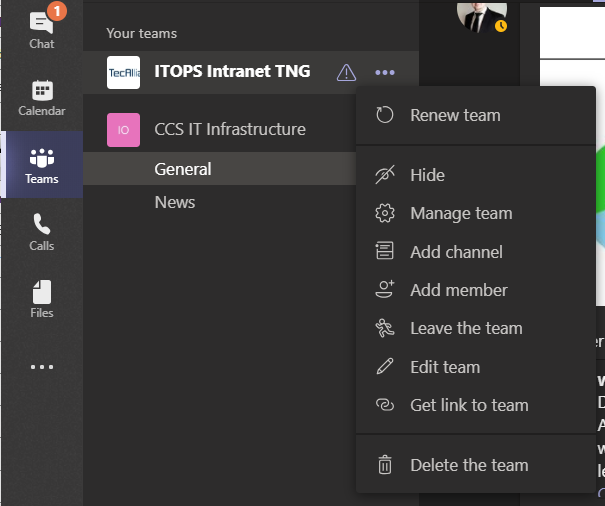
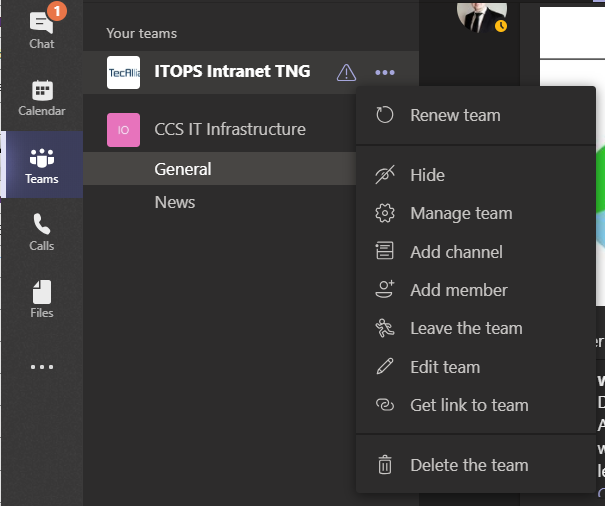
- To add or remove members click on your team on the three dots and "Manage Team", you only can modify if you are a owner of the group.
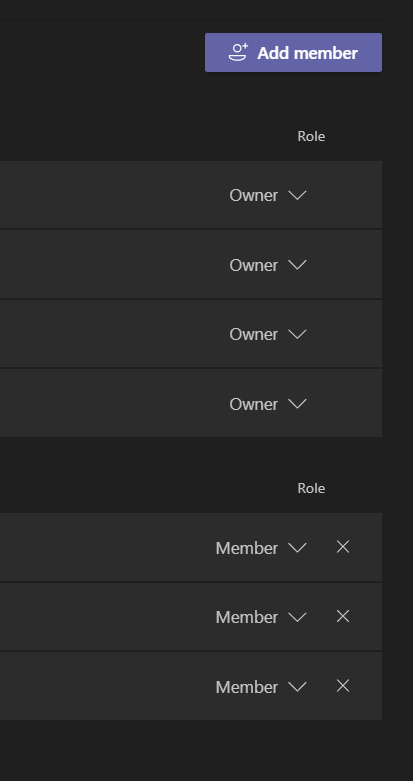
- You can add members by clicking "Add member"
- You can change the Role by clicking on the dropdown in the users row. The possibles are member or owner.
- To remove a member, click on the "X" at the end of line

- Every Group has an "General" channel. This is the default channel to chat with all other members of the group. (You can define more channels by clicking ...)

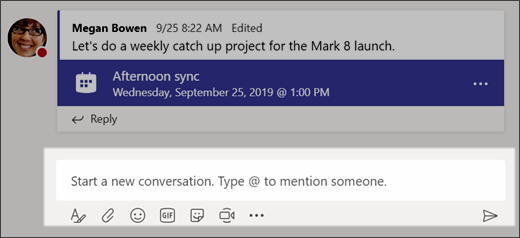
- For chatting use the textbox at the bottom to write your message. You can use Attachments, Pictures, Emojis, GIFs and more. Also you can use the @ tag with a member name, the group name or channel name. The reciver(s) will get an notification at the activity scope. The following format skills are available by clicking "Format":
- Headings
- Bold
- Bullet list
- Links
- Quotes
- Code Snippets
- Tables
- ...
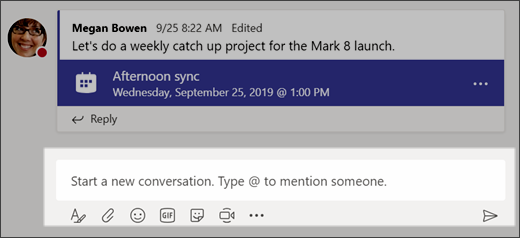
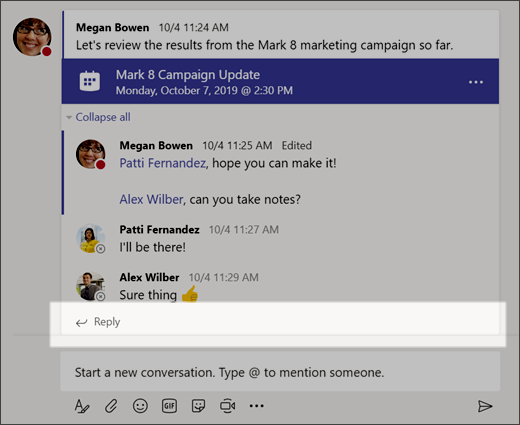
- Use the reply button to answer. Your text will show below the message directly.

Calls and Meetings
You can use Microsoft Teams to making calls with other Microsoft Teams users. Calls are available in Teams, Chats (inc. Groupchats) and Meetings.
Calls can include:
- video calls
- sharing desktops or windows
- controlling the desktop of the presenter
- ...
How to use by using the chat
- Open the chat of your team or the chat with your partner or group
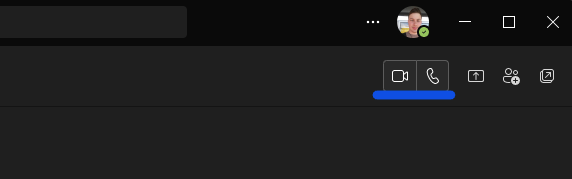
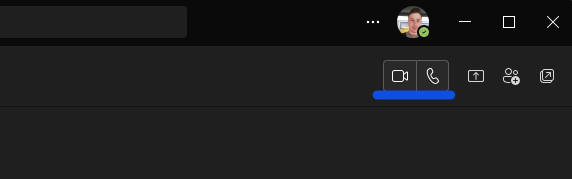
- Click on the video icon for video calls or the telephone icon for only audio calls at the top on the right site
- In the call you can control the features at the bottom with the control panel. You can use the different icons
- Video => start and stop your webcam
- Microphone => Mute or unmute yourself
- Screen => Share your desktop or window
- ... => more options
- Show device settings => Go to Settings > Device
- blur your background => your partner can't identify your background (see pictures below)
- Speech bubble => use the chat
- People => add or remove attendees
- Telephone => hang up


How to join a meeting
- Open Teams and click on calendar on the left side
- Select your meeting by clicking on it (the meetings in Outlook and Teams are the same)
- You will see the meeting details, your answer and the attendees
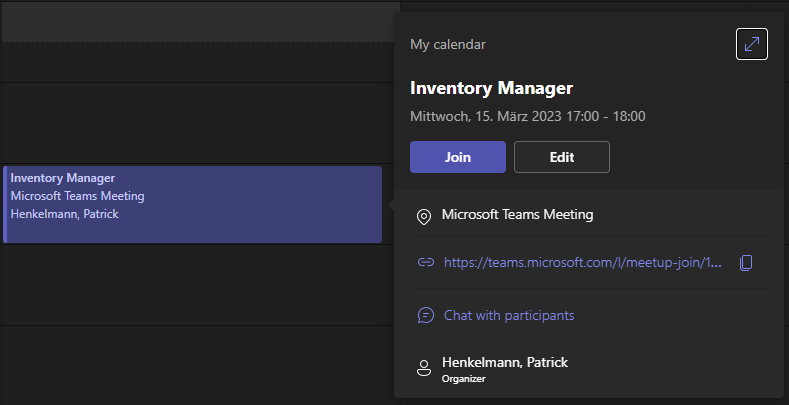
- Click on join to open the meeting. The first attendee starts the meeting.

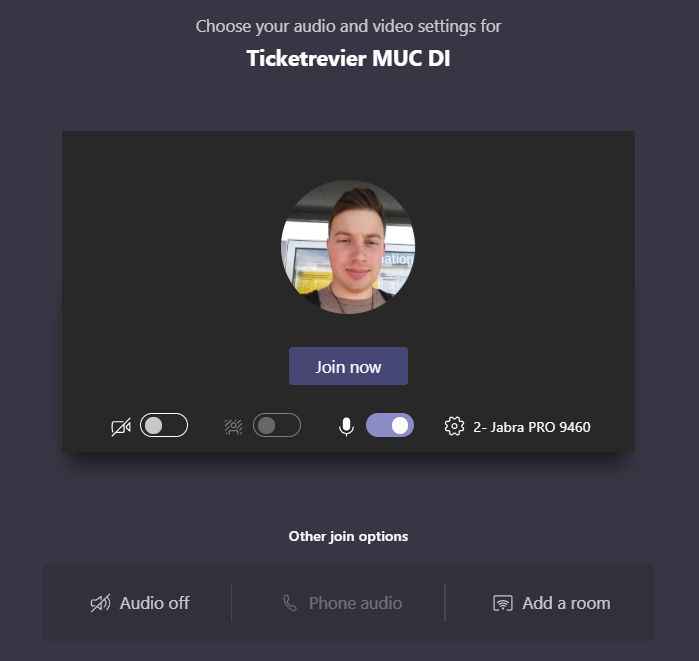
- Check your settings and confirm it with "Join now". You can change the following things:
- En-/Disable your webcam
- Use blur your backgrond
- Un-/Mute you
- Change your audiodevice
- En-/Disable your webcam
Alternative
- Open the meeting in Outlook
- Click on "Join Microsoft Teams-Meeting"
- Your web browser will open a new tab and ask you how to open, choose Teams as application or Open with Teams
- Teams will join the meeting and open it
- Confirm you device settings
Settings
You can access the settings by clicking on your picture on the top right corner and selecting "Settings".
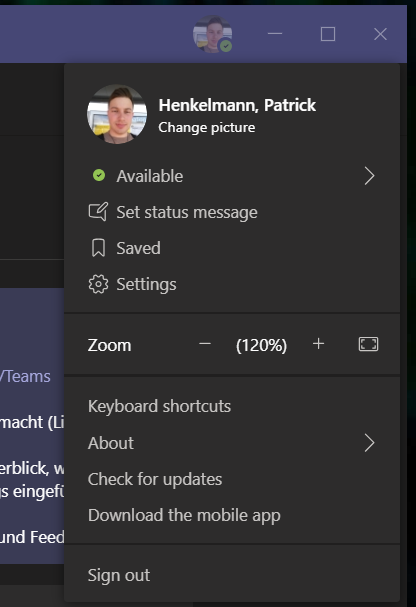
You will see the following screen:
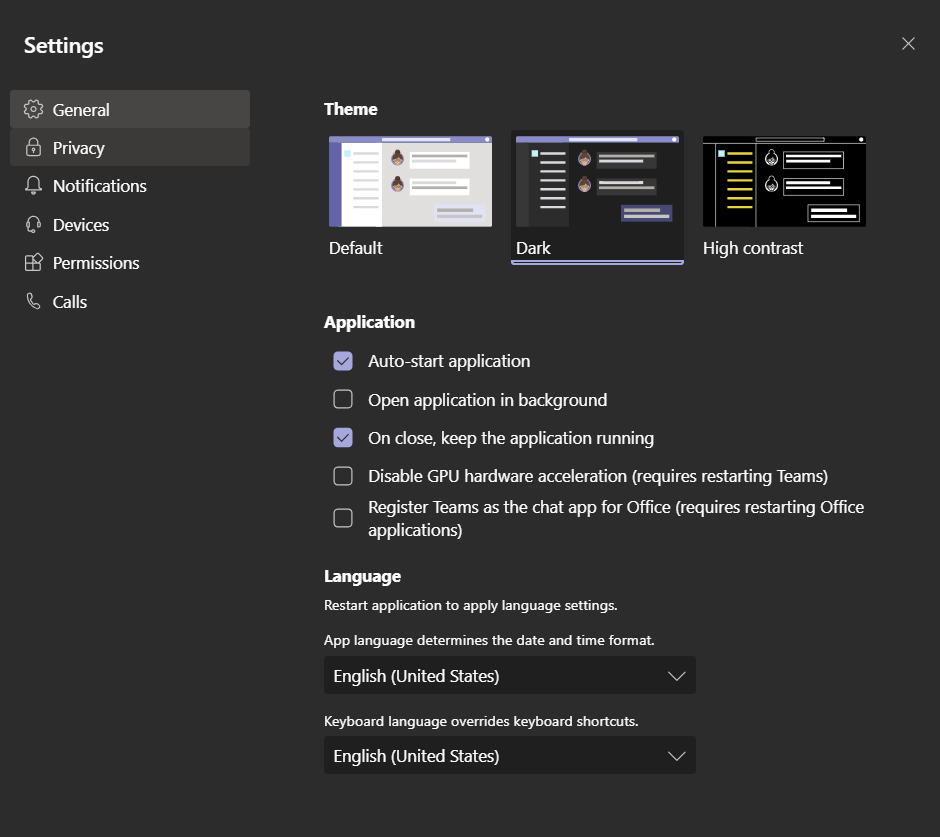
General
At the general section you can find the Theme configuration, the language and the application behavior.
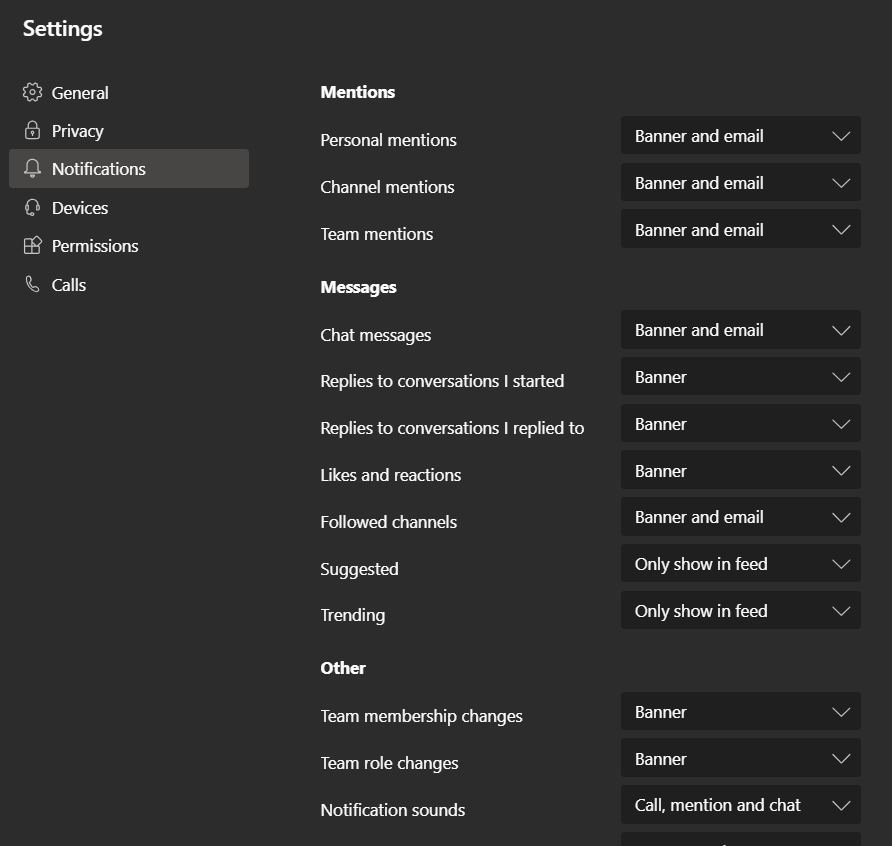
Notifications
At the notification section you can manage your notifications.
Devices
At the devices section you can find the settings for your headset and webcam.
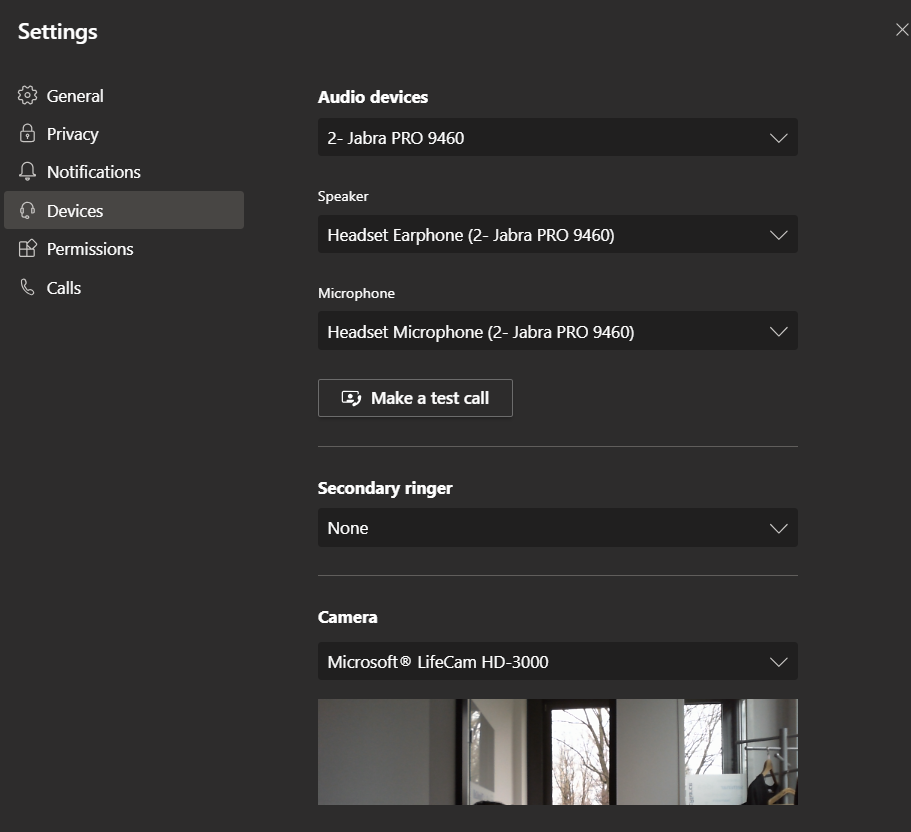
To change your headset, you can change the Audio device. After changing the audio device Teams will change Speaker and Microphone automatically to the selected audio device too. If you want to use two different devices you can select the speaker and microphone.
The secondary ringer is a second audio device that will also ring if you are getting a call.
To change your webcam select the video device by Camera. Teams will show you a preview.
No comments to display
No comments to display